Introduction
AirPods provide a seamless audio experience across various devices. Yet, connecting them to your laptop can sometimes pose a challenge. Whether you’re using them for work, school, or leisure, understanding how to establish this connection is essential. This guide will lead you through the necessary steps to connect AirPods to either Windows or Mac laptops while offering solutions to common connectivity issues you’ll face.

Understanding Your AirPods
Before diving into connection specifics, it’s key to familiarize yourself with your AirPods model. Different versions like AirPods Pro and AirPods Max boast unique attributes, but they all rely on Bluetooth for connectivity. Grasping these fundamentals aids in troubleshooting and ensures compatibility with your laptop.
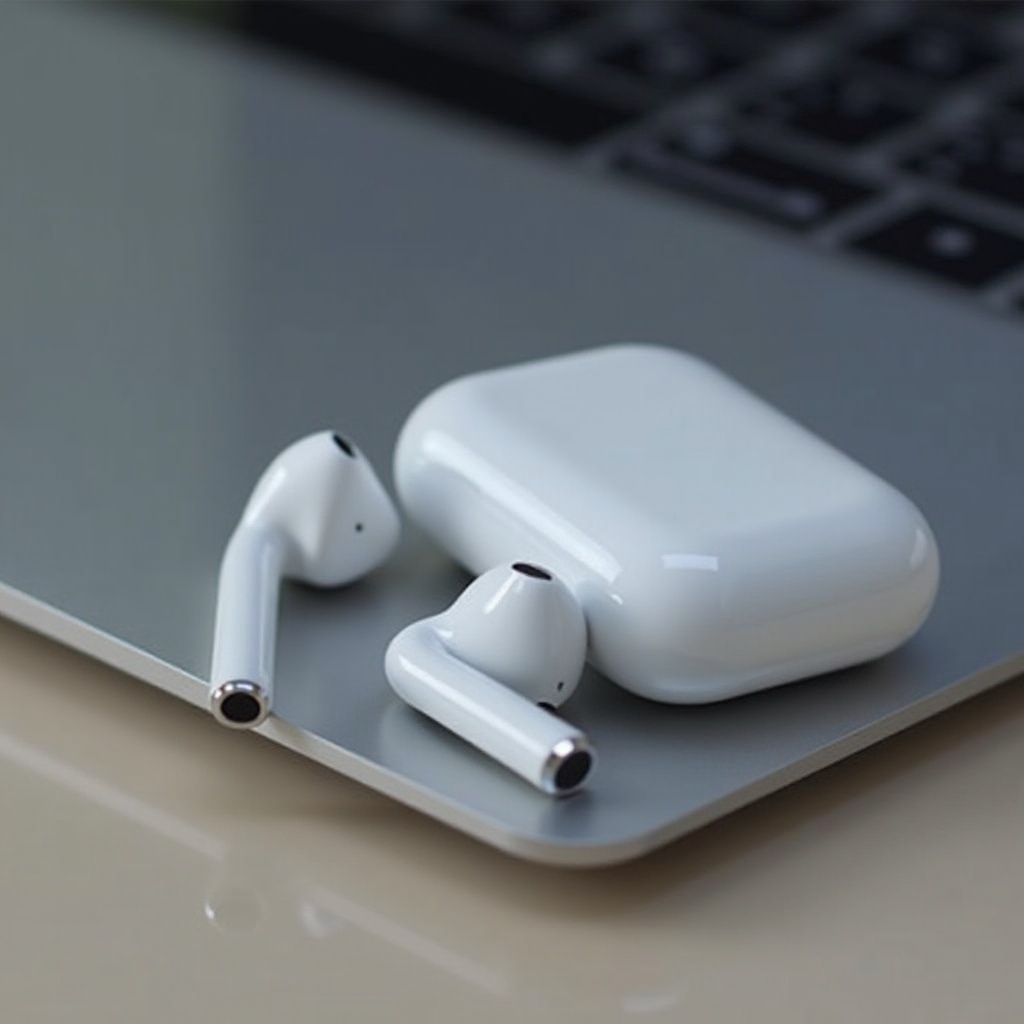
Preparing Your Devices
Proper prep of your devices is the first step:
- Update Software: Keep your laptop’s operating system and AirPods firmware updated. Patches often include fixes for connection issues.
- Charge Devices: Confirm your AirPods and laptop have ample charge to establish a strong connection.
- Enable Bluetooth: Ensure Bluetooth is activated on your laptop.
With your devices prepped, you’re ready to connect, whether to a Windows or Mac laptop.
How to Connect AirPods to a Windows Laptop
Connecting your AirPods to a Windows laptop can be straightforward if you follow these steps:
- Access Settings: Go to ‘Settings’ on your Windows laptop.
- Select Devices: Click ‘Devices’ and make sure Bluetooth is on.
- Add a Device: Choose ‘Add Bluetooth or other device’ and select ‘Bluetooth’.
- Prepare AirPods: Open your AirPods case lid, and press the setup button until it blinks white.
- Connect: Select your AirPods when they appear in the list, and click to connect.
Should you face problems:
- Restart Bluetooth: Try switching Bluetooth off then back on.
- Reboot Laptop: If issues persist, restart your laptop.
After setting up on a Windows laptop, connecting to a MacBook involves a different procedure.
How to Connect AirPods to a MacBook
A MacBook connection is accomplished through these steps:
- Open System Preferences: Click ‘System Preferences’ via the Apple menu.
- Setup Bluetooth: Click ‘Bluetooth’ and ensure it is on.
- Initiate Pairing Mode: Keep your AirPods case open and press the button until it flashes.
- Choose Device: In Bluetooth, find your AirPods and select them to connect.
For any Mac-specific hitches:
- Audio Output: Confirm the audio output is set to AirPods.
- Reset Bluetooth Module: If issues continue, reset your Mac’s Bluetooth module.
Both setups should be problem-free, but if connection difficulties arise, consult the troubleshooting section.

Troubleshooting Common AirPods Connectivity Issues
Despite careful setup, connectivity may falter. Address these common problems:
- AirPods Not Listed in Bluetooth: Ensure your AirPods are in pairing mode and close to the laptop.
- Sound Quality or Connection Drops: Move the devices closer together and charge them to avoid interference.
Persisting issues may require a factory reset of your AirPods to clear underlying problems.
Tips for an Enhanced Audio Experience
Optimize your listening experience by:
- Modifying Audio Settings: Adjust your laptop’s audio settings for better sound.
- Exploring Features: Try features like spatial audio if supported.
Effectively connecting your AirPods enriches productivity and enjoyment with superior audio quality.
Conclusion
Understanding how to connect your AirPods to a laptop unlocks a host of features. Following these steps ensures you enjoy high-quality, seamless audio on both Windows and Mac. Start connecting and experience the convenience today.
Frequently Asked Questions
Why won’t my AirPods connect to my laptop?
Ensure Bluetooth is enabled, check your AirPods’ charge, and try resetting both your laptop Bluetooth settings and the AirPods.
How can I improve the sound quality of my AirPods on my laptop?
For better sound quality, maintain a stable connection, adjust your device’s audio quality settings, and minimize wireless interference.
Can I connect my AirPods to multiple devices simultaneously?
AirPods can automatically switch between devices when Bluetooth is active on each, though they can’t maintain simultaneous connections.