Introduction
JLab earbuds deliver an impressive wireless sound experience, but sometimes they can be stubborn, refusing to pair with your devices. This guide aims to help you understand and resolve those pairing issues swiftly, ensuring your earbuds function flawlessly.
Common Bluetooth Pairing Problems
Before we delve into the specifics of troubleshooting, it’s essential to recognize the typical issues that interrupt Bluetooth pairing. This understanding helps in diagnosing and fixing your earbuds with greater efficiency.
-
Understanding Bluetooth Connectivity: Bluetooth uses radio waves for device communication over short distances. Physical barriers or electronic interferences might disrupt this signal.
-
Environmental Factors Affecting Pairing: Dense objects or wireless devices can generate noise that interferes with Bluetooth signals. Pair your devices in an open environment for better success.
-
Potential Hardware Issues: Occasionally, hardware problems might be the culprits. Damage to your earbuds or a faulty Bluetooth module in your device can lead to connection issues.
Grasping these common issues helps in laying the groundwork for effective troubleshooting.
Initial Troubleshooting Steps
If you are experiencing pairing difficulties with your JLab earbuds, begin with these straightforward steps:
-
Ensure Your Earbuds Are Fully Charged: A low battery may prevent successful pairing. Recharge your earbuds in their case to make sure they’re powered up.
-
Restart Your Bluetooth Device: Sometimes, a simple restart of your phone, tablet, or computer can clear temporary difficulties.
-
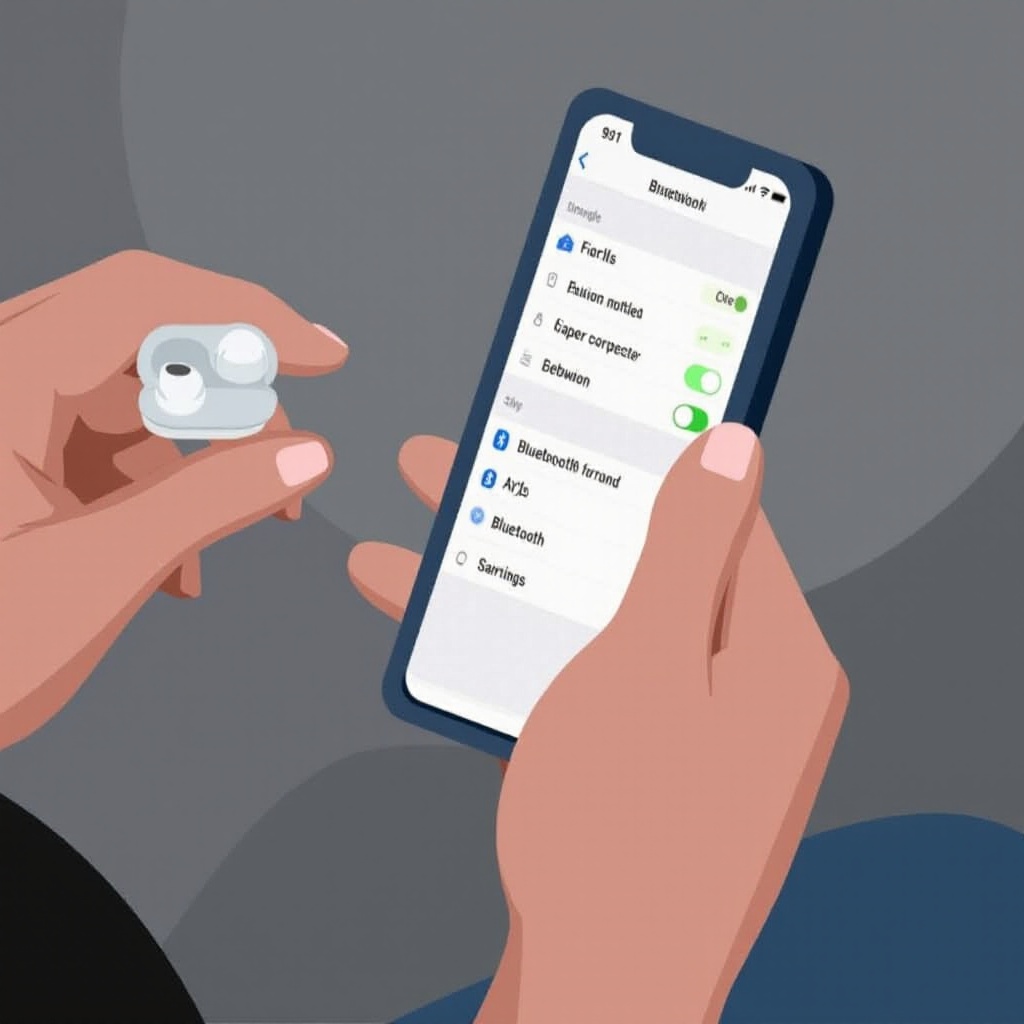
Check Bluetooth Settings on Your Device: Ensure that Bluetooth is enabled. In your device’s Bluetooth settings, find your JLab earbuds and tap to connect. If they were previously connected, you may need to ‘Forget’ and re-pair them.
These initial efforts are quick fixes that often resolve minor pairing glitches without needing more advanced techniques.
Advanced Troubleshooting Guide
When initial troubleshooting fails, advanced steps might be necessary. These methods tackle persistent issues that basic solutions couldn’t fix:
-
Reset Your JLab Earbuds: Resetting often clears many connection problems. Check your model’s manual for precise reset instructions, which typically involve pressing the multifunction button for a specified time.
-
Update Device Firmware: Outdated firmware might cause compatibility problems. Visit either JLab’s website or your device’s support page for any available updates and download them as needed.
-
Clear Bluetooth Cache on Your Device: For Android devices, go to Settings > Apps > Bluetooth and choose ‘Clear Cache.’ iOS devices handle cache differently, and a reboot is generally enough.
By implementing these advanced techniques, you can target stubborn issues that couldn’t be resolved by simpler means.
Specific Device Pairing Solutions
Methods to pair your earbuds might vary based on the device you are using. Follow these steps for some common devices:
-
Pairing with iOS Devices: Ensure earbuds are in pairing mode. Navigate to Settings > Bluetooth on your iOS device, find the earbuds, and tap to pair.
-
Pairing with Android Devices: Go into the Bluetooth settings on your Android device and select ‘Pair New Device.’ Your earbuds should appear on the list; tap to connect.
-
Troubles with Laptops and Desktops: Ensure Bluetooth is enabled on your computer. In the Bluetooth settings, search for available devices and connect with your JLab earbuds.
Following these device-specific instructions can address variations in operating systems and Bluetooth settings that might impede a successful connection.
Tips for Maintaining a Stable Connection
After pairing your earbuds, maintaining a stable connection is vital for uninterrupted audio enjoyment. Here are some useful tips:
-
Regularly Check for Software Updates: Ensure both your earbuds and devices have the latest software updates to maintain compatibility and enhance performance.
-
Minimize Interference from Other Devices: Devices like microwaves, routers, and other Bluetooth gadgets can interfere with your connection. Keep your earbuds away from such potential disruptors.
-
Best Practices for Storing and Charging: Properly storing and charging your earbuds ensures they work optimally. Always use the case to avoid damage when not in use.
Implementing these best practices ensures that your JLab earbuds function well over time, maintaining both performance and longevity.
When to Seek Professional Help
After trying all troubleshooting steps, if your earbuds remain unresponsive or refuse to connect, professional assistance might be needed:
-
Identifying Hardware Failures: Symptoms like a non-functioning earbud or an entirely unresponsive device may suggest hardware faults that require expert diagnosis.
-
Contacting JLab Customer Support: Reach out for professional advice from JLab’s customer service or inquire about warranty options if your earbuds prove defective.
These steps should be considered when all else fails, and professional intervention becomes necessary to fix your earbuds.
Conclusion
In summary, resolving Bluetooth pairing issues with JLab earbuds is typically achievable with a mix of straightforward and advanced troubleshooting steps. For ongoing issues, reach out to JLab support for additional help.
Frequently Asked Questions
Why do my JLab earbuds disconnect randomly?
Random disconnections can occur due to low battery, Bluetooth interference, or outdated firmware. Ensure the earbuds are charged, and try resetting them.
Can I pair my JLab earbuds with multiple devices?
Yes, you can pair them with multiple devices, but not at the same time. Disconnect from one device before pairing with another.
What should I do if one earbud isn’t pairing?
Try resetting the earbuds. If this doesn’t work, ensure both earbuds are charged and not physically damaged. Reach out to support if necessary.