Introduction
Experiencing a situation where Windows 10 shows ‘connected’ yet displays ‘no internet access’ is a common and frustrating dilemma. This issue disrupts work, communication, and entertainment, cutting you off from the limitless possibilities of the internet. Thankfully, diagnosing and addressing this challenge involves straightforward and more advanced fixes. Here, we’ll journey through various solutions, starting from simple checks to more sophisticated tactics, ensuring that your connectivity is restored without much hassle.
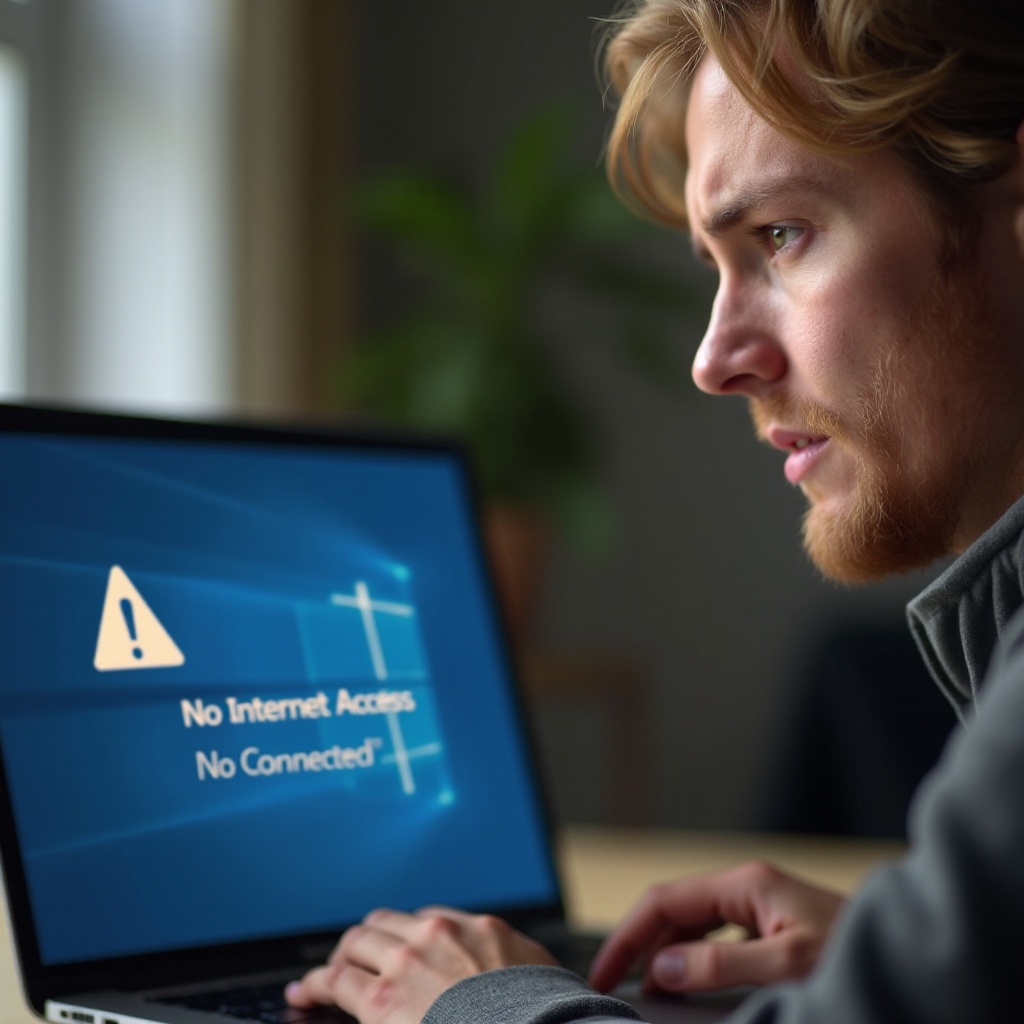
Understanding the Network Issue
When your Windows 10 device denotes ‘no internet access but connected,’ it’s a sign of a disconnect between your device and the internet gateway, despite an apparent network connection. These disruptions often stem from incorrect network configurations, outdated drivers, hardware issues, or applications causing interference. By understanding the source of the issue, the troubleshooting process becomes more targeted, minimizing disruption time and assuring that the specific problem is addressed adequately.
Diagnosing the Problem
Determining the root of this network issue is essential in applying the correct solution. Consider the following diagnostic methods:
Quick Diagnostic Steps
- Check Network Status: Navigate to Network & Internet settings and observe the network activity.
- Run Network Troubleshooter: Leverage Windows’ integrated troubleshooter for automated detection of problems.
- Ping Google: Launch Command Prompt and ping ‘google.com’ to verify internet reachability and diagnose connectivity.
Network Icon and Error Analysis
Scrutinize the network icon on your taskbar. A yellow triangle or globe icon signals connectivity issues. Analyze any accompanying error messages, like ‘unidentified network’ or ‘DNS server not responding,’ as they can direct you towards necessary adjustments.
Basic Troubleshooting Steps
Armed with diagnostic information, you can begin resolving identified concerns with a few elementary fixes:
Restarting Your Computer
Restarting your PC can refresh the system, likely resolving temporary drivers or configuration issues affecting connectivity. Try this and verify your network status.
Rebooting Router and Modem
- Power down both devices: Unplug the router and modem completely.
- Wait for at least 30 seconds: Permit any residual memory to clear entirely.
- Reconnect and restart devices: Allow devices to fully restart, then check the PC’s network connection again.
Advanced Fixes
If basic troubleshooting doesn’t yield positive results, delve into advanced solutions to tackle the issue at its core:
Resetting the TCP/IP Stack
Restoring the TCP/IP stack can rectify corrupted networking configurations:
- Open Command Prompt with administrative privileges.
- Execute the commands:
netsh int ip resetnetsh winsock reset- Reboot your computer to apply changes.
Updating Network Drivers
Out-of-date network drivers may induce connectivity problems:
- Open Device Manager: Right-click the Start menu and choose ‘Device Manager.
- Find Network Adapters: Expand the list, right-click your network adapter, and select ‘Update driver.
- Follow Instructions: Select ‘Search automatically for updated driver software.
Checking Windows 10 System Settings
System settings can significantly influence resolving network problems. Ensure these settings are correctly tweaked:
Disable Fast Startup
Fast Startup may trigger issues with network adapters:
- Access Control Panel: Proceed to ‘Power Options.
- Choose What the Power Buttons Do: Tap ‘Change settings that are currently unavailable.
- Disable Fast Startup: Uncheck the option, save changes, and restart the PC.
Perform Network Reset
Clearing network settings could fix conflicting configurations:
- Visit ‘Settings’ > ‘Network & Internet’ > ‘Status.
- Scroll and hit ‘Network reset.
- Follow prompts, and rejoin your network.
Additional Considerations
Besides software tweaks, external factors may influence connectivity:
Environmental Factors
Physical obstructions or electronic interference may undermine Wi-Fi efficacy. Ensure your router is elevated in an open area, avoiding multiple walls between other devices.
Router Configuration Checks
Router setup, including channel assignment and security settings, could contribute to connectivity woes:
- Access your router’s configuration interface via a web browser (common IP is 192.168.1.1).
- Examine your configurations, addressing any misconfiguration that may hinder access.
Conclusion
Restoring your internet connection amidst a ‘no internet access but connected’ dilemma involved structured diagnostics paired with basic and advanced troubleshooting methods, along with configuration adjustments. Following this comprehensive approach assures a stabilized network and fewer future disruptions, securing uninterrupted online experiences.
Frequently Asked Questions
Why does my computer say ‘No Internet Access’ even when connected?
This typically results from incorrect network settings, outdated drivers, or an unreliable connection to a router or modem.
How can I update network drivers in Windows 10?
In Device Manager, find your network adapter, right-click, and select ‘Update driver.’ Then choose ‘Search automatically for updated driver software.’
What should I do if the problem persists after trying all these solutions?
Contact your Internet Service Provider to verify service status or consult a professional for deeper hardware or software issues.